 HiWhiteboard
Free online whiteboard, no sign-up
HiWhiteboard is a free, browser-based internet whiteboard for sketches, diagrams, and lesson notes. Open a board without creating an account, then save it in this browser or download a backup.
- Pen, shapes, arrows, text
- Add PNG, JPEG, WebP images
- Undo and zoom
- Export PNG, SVG, editable file
Opening a board creates it in this browser. Already have boards? See My boards.
How to use the whiteboard
- Select Open a blank whiteboard. The editor fills the screen; Exit returns to this page.
- Pick a tool from the toolbar: selection, rectangle, diamond, ellipse, arrow, line, free draw, text, or eraser. Hold Space and drag, or use two fingers, to move around the canvas.
- Name the board in the top bar. The status next to it shows Saved in this browser after each change is stored.
- Use Insert image to add a PNG, JPEG, or WebP picture, or paste a copied image.
- Open Export to download a PNG or SVG image, or an editable
.excalidrawbackup you can import later.
Files and images must stay within the board limits. Boards are stored per browser and site address; read how saving and backups work.
About online whiteboards
What is an online whiteboard?
An online whiteboard is a drawing workspace that you open in a web browser. You can use it for sketches, diagrams, and written notes. HiWhiteboard runs its editing tools in your browser and saves boards on this device; it does not sync them to a cloud account.
What is a digital whiteboard, and how does it work?
“Digital whiteboard” can mean either a software drawing workspace or a physical interactive display. HiWhiteboard is the software kind: you use drawing and text tools in a browser, and the board’s editable content is saved locally. You do not need a dedicated whiteboard display to use it.
What is a virtual whiteboard useful for?
A virtual whiteboard provides a screen-based space for visual notes. You can sketch a process, explain a lesson, or organize ideas before exporting the result. Some whiteboard services support simultaneous editing; HiWhiteboard currently supports a single editor, with file export or external screen sharing for showing the work to others.
Drawing, writing, and fixing mistakes
How do I use an online whiteboard?
Open the whiteboard, choose a drawing or text tool, and add your content to the canvas. Use selection and zoom to arrange the board. Check the local save status, then download an editable backup when the work matters. You can also start from a template instead of a blank canvas.
How do I write on an online whiteboard?
Use the text tool to type a note, label, or heading, or use the free-draw tool for handwriting. Move and resize the result with the selection tool. HiWhiteboard accepts typed text and drawn strokes; it does not convert handwriting into typed text or recognize mathematical notation.
Can I draw on a computer without a touchscreen?
Yes. You can use a mouse or trackpad to draw, select shapes, and type on the whiteboard. Shape and arrow tools make simple diagrams easier than drawing every line by hand. A touchscreen is optional; pen-device behavior depends on the device and browser, so pressure sensitivity is not guaranteed.
Can I import or paste images into an online whiteboard?
HiWhiteboard lets you upload supported PNG, JPEG, and WebP images and place them on the canvas. Image pasting is available when the browser exposes a supported clipboard image; upload is the fallback. Imported images are kept with the board and its editable backup. Remote image URLs, SVG imports, and embedded webpages are not supported.
How do I correct a mistake on a digital whiteboard?
On HiWhiteboard’s drawing canvas, use Undo for a recent change, select an object to adjust it, or delete the selected object when you no longer need it. Kanban changes can also be undone during the current session. These steps apply to digital boards; they do not describe removing ink from a physical whiteboard.
How do I create a virtual whiteboard?
To create a board for drawing, open HiWhiteboard’s whiteboard tool and start a blank board, or choose a template to create a new copy. Give it a name, add your content, and check the local save status. Your board is kept in this browser rather than published as an online room.
Ideas to draw
What can I draw on a whiteboard?
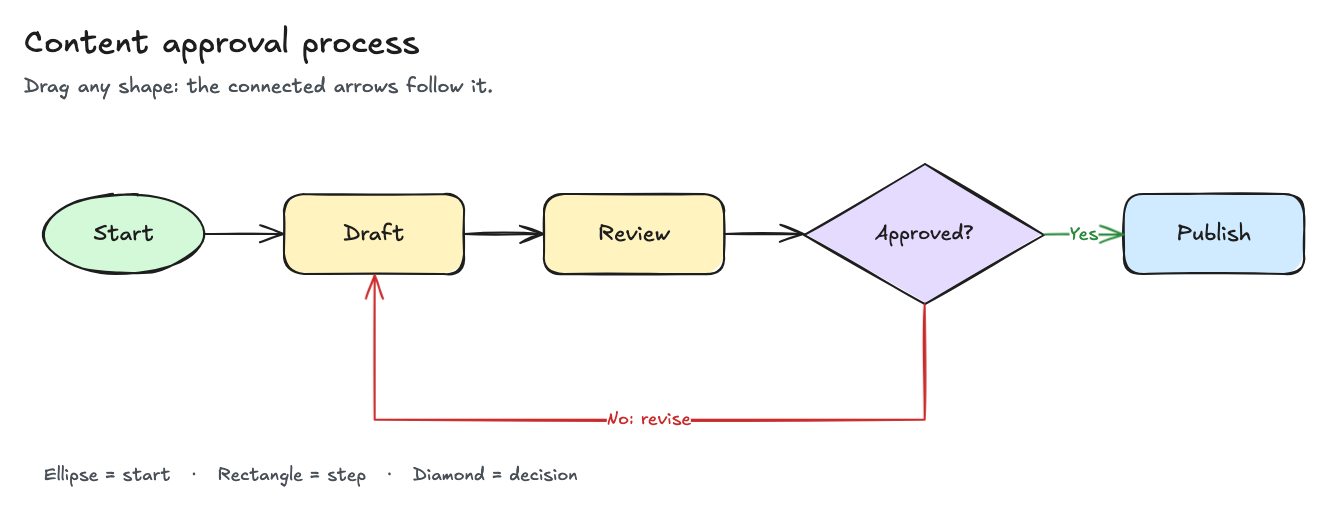
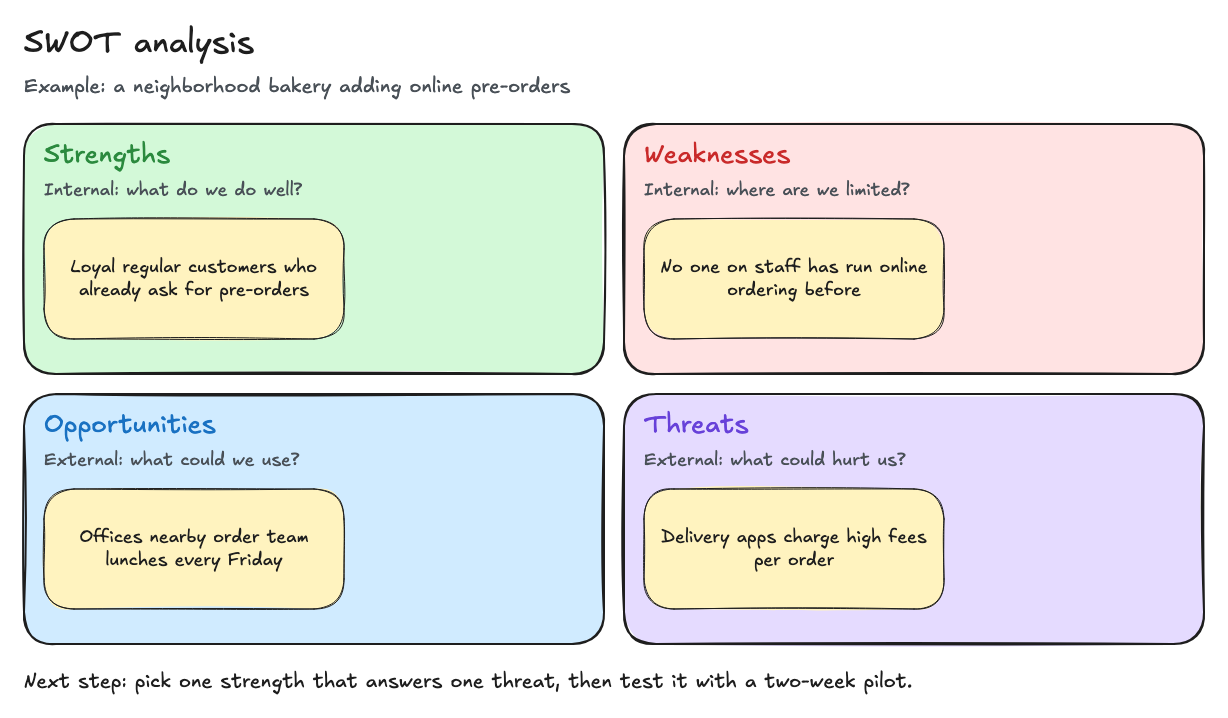
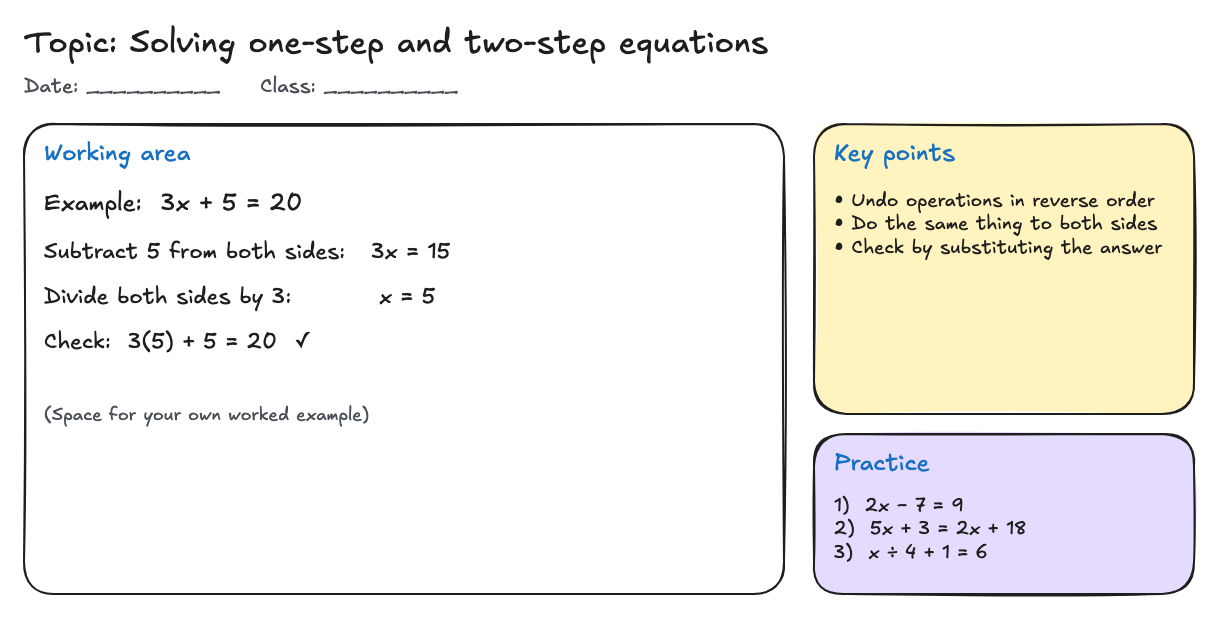
Start with a small task: sketch a three-step process, map a SWOT analysis, or work through a lesson example. HiWhiteboard’s flowchart, SWOT, and classroom templates give you editable starting points. Add your own labels and shapes, then export the finished board as an image.
Choosing an online whiteboard
What is virtual whiteboard collaboration? Does HiWhiteboard support it?
Virtual whiteboard collaboration usually means that several people can work on the same shared board, often with synchronized edits and visible cursors. HiWhiteboard does not provide that feature. You can show a board by screen sharing or exchange editable files, but these are viewing or copy-sharing workflows, not simultaneous collaboration.
What should I look for in an online whiteboard tool?
Choose features around the task: drawing and text for explanations, templates for structured work, export for sharing, and a clear saving method for recovery. Check whether you need simultaneous editing, cloud access, or organizational controls. HiWhiteboard focuses on no-sign-up, single-editor use and local backups; it does not include those team services.
What is the best online whiteboard for my task?
The best fit depends on how you will use it. HiWhiteboard is designed for quick sketches, lesson notes, and personal task boards without an account. If you need multiple people editing together, cross-device cloud storage, or administrator controls, choose a service that supports those requirements. Test your saving and export workflow before relying on any tool.