 HiWhiteboard
A classroom whiteboard template for browser-based lessons
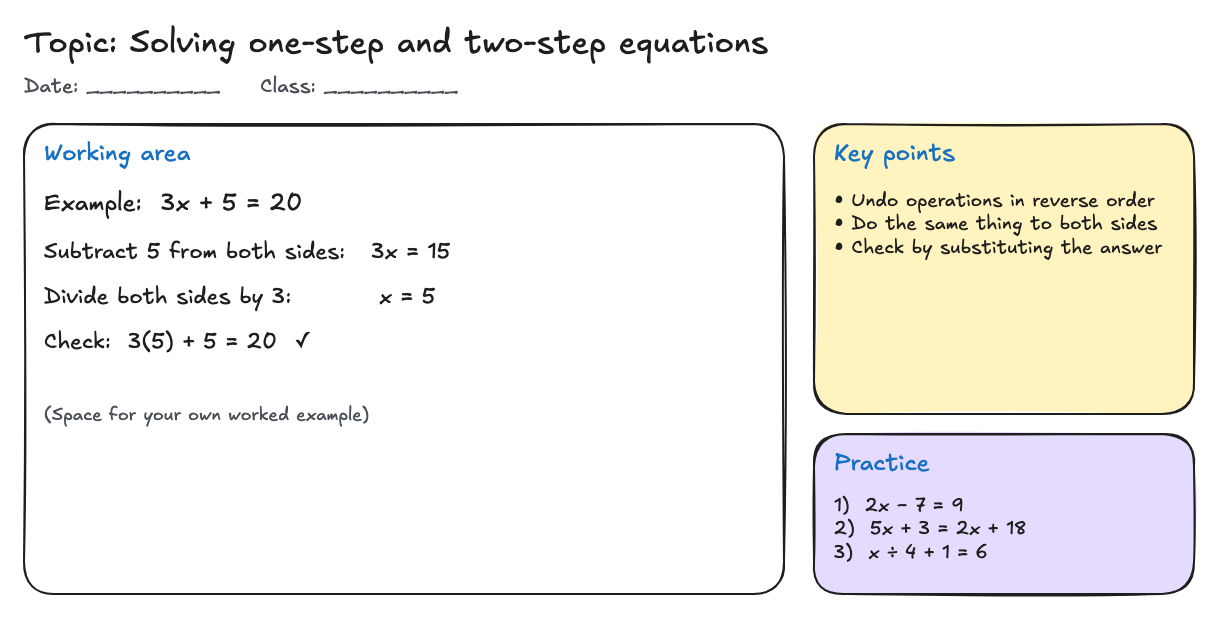
This is a browser-based classroom whiteboard template, not a physical board: a ready-made lesson canvas with a topic and date header, a large working area, a key points box, and practice questions. The teacher writes on it alone and shows it through their own projector or screen sharing.
Best for: Teachers and tutors who explain worked examples on a screen during in-person or online lessons.
Opens in the whiteboard as a new board saved in this browser.
What you get
- A topic and date header, a working area with a solved example, a key points box, and practice questions
- Room to add a worksheet photo with Insert image and write on top of it
- Exports for the lesson notes
What it does not do
- Students cannot draw on your board from their devices
- No class codes, student accounts, video calls, or grading
- No equation editor or LaTeX
What is in the template
- Header — Topic: Solving one-step and two-step equations, with blanks for date and class.
- Working area — a worked example, 3x + 5 = 20, solved step by step with a check, plus empty space for your own example.
- Key points — three short rules in a yellow box: undo operations in reverse order, do the same thing to both sides, check by substituting.
- Practice — three questions in a purple box for students to try.
Everything is editable: replace the topic, delete the example, or resize the boxes.
How to use it in a lesson
- Select Use this template. A new copy opens in the whiteboard tool.
- Change the topic and date. Write or type today’s example in the working area.
- To show a problem from a worksheet, use Insert image to add a PNG, JPEG, or WebP picture, then write on top of it.
- Show the board on a projector, or present your browser tab or window with your meeting tool’s screen sharing.
- After class, use Export → Image or SVG to save the notes as a picture you can share, and Export → Editable file if you want to reuse the board.
What this template does not do
Students cannot draw on your board from their own devices, there is no class code or student login, and nothing is graded automatically. The board is a single-editor teaching surface. For maths, write steps by hand or as text; there is no equation editor or LaTeX rendering.
Tips for readable lessons
- Keep one example per working area; start a new copy for the next topic.
- Use the text tool for headings and the free-draw tool for handwriting.
- Increase stroke width and font size if students view the screen from the back of a room.
Questions
Can I upload a photo of a worksheet?
Yes — PNG, JPEG, and WebP images within the image limits. The image is stored with the board in your browser and included in its editable backup.
Do students need an account?
No one needs an account. Students only see your board if you project it or share your screen.
Will the lesson be saved for next year?
It stays in this browser unless site data is cleared. For anything you want to keep, download the editable file.
How can I organize a classroom whiteboard?
For a browser-based lesson, separate the board into a topic area, a working area, key points, and practice. The classroom template includes those sections so you can keep explanations and exercises apart. Project or screen-share the board when needed, and save an image of the completed lesson for later reference.
Related
- Flowchart template — Start, Draft, Review, an Approved? decision, and Publish, with a rework loop.
- SWOT analysis template — Four quadrants with a worked example for a small bakery project.
- Retrospective template — Start, Stop, and Continue sections with example notes and action items.
- Guide: Use an online whiteboard for teaching and tutoring