 HiWhiteboard
How to save, export, and back up a whiteboard
Updated
HiWhiteboard has no accounts and no cloud storage. Your boards are saved inside the browser you use, on that device. This guide explains what that means and how to keep your work safe.
How autosave works
Every change is written to your browser’s local database (IndexedDB) shortly after you make it. The toolbar shows the result:
- Saving… — a change is being written.
- Saved in this browser — the latest change is stored.
- Not saved — download a backup — the browser refused to save (storage disabled, full, or another problem). Your board is still open in the tab; download a backup right away.
If you open the same board in two tabs, the second tab is read-only so the two copies cannot overwrite each other. Choose Duplicate to edit there if you need a separate copy.
Image vs editable backup
| Image for viewing (PNG, SVG, print) | Editable backup (.excalidraw, .hiwhiteboard.json) | |
|---|---|---|
| Good for | Showing the result in a message, document, or slide | Keeping your work, moving it to another browser or device |
| Can be imported back as a board | No | Yes, always as a new board |
| Keeps Kanban card fields, dates, and order | Only as visible text | Yes |
| Counts as a backup in the toolbar | No | Yes |
The toolbar shows the backup state of the open board: No editable backup exported, Last backup export: …, or Changes since last backup export. It records when a backup file was created and its download started; it cannot check that the file is still on your disk.
Copy local bookmark (in the Export menu) copies the board’s address. That link reopens the board only in this browser; it does not share the content with anyone.
Kinds of export
| You want to… | Use | Editable later? |
|---|---|---|
| Keep or move a drawing board | Export → Editable file (.excalidraw) | Yes — import it as a new board |
| Keep or move a Kanban board | Export → Backup file (.hiwhiteboard.json) | Yes — import it as a new board |
| Share a picture of a drawing | Export → Image or SVG (PNG or SVG, whole board or selection, white or transparent background, 1× or 2×) | No |
| Share a picture of a Kanban board | Export → PNG image (several pages for large boards) | No |
| Print a Kanban board | Export → Print or save as PDF | No |
Image exports do not contain editable board data. Very large PNGs are scaled down to stay within the export limits below, and you are told the final size.
Importing a backup
Choose Import in the tool or on My boards, then pick a .excalidraw or .hiwhiteboard.json file. The file is checked first; if it is damaged, too large, or uses unsupported content (such as embedded web pages, SVG images, or links to remote images), nothing is imported and your existing boards are untouched.
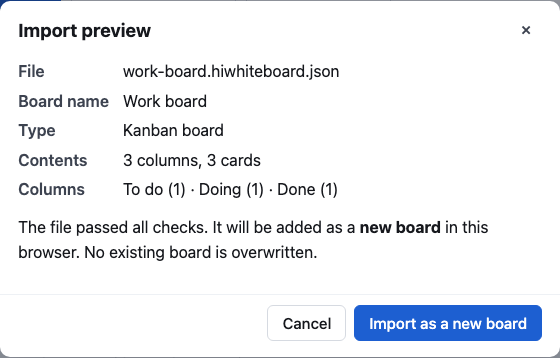
A valid file opens an Import preview with its name, type, and contents (for example, 3 columns, 12 cards, 4 with due dates). Nothing is written until you choose Import as a new board. A valid file always becomes a new board; it never replaces one you have. If the board you are on has unsaved changes, you are asked first, and if the browser cannot store the imported board you stay where you are, with the option to open the imported board temporarily (not saved).
Limits
These limits keep the browser responsive. Imports and edits that would exceed them are refused with a message, and nothing is cut off silently.
| Limit | Value |
|---|---|
| Board name | 1–120 characters |
| Drawing elements per board | 5,000 |
| Size of one image | 5 MB |
| Pixels in one source image | 16,000,000 |
| All images on one board | 15 MB |
| Saved size of one board (including images) | 25 MB |
| PNG export: longest side | 8,192 px |
| PNG export: total pixels | 16,000,000 |
| Kanban columns per board | 20 |
| Kanban cards per board | 500 |
| Card title | 200 characters |
| Card description | 5,000 characters |
| Kanban undo history (current session) | 50 steps |
| Import file size | 30 MB |
Questions about saving, exporting, and sharing
How do I save a whiteboard?
HiWhiteboard automatically saves changes in this browser when local storage is available. Wait for the saved status before switching boards. For a portable backup, export an editable .excalidraw file. Browser storage can be cleared or become unavailable, so local autosave should not be your only copy of important work.
How do I save a whiteboard drawing as an image?
Open Export and choose PNG for a standard image, or SVG for a vector file. Select the board or selected-elements option, choose a background, and download the file. An image is useful for viewing and sharing; keep a separate editable backup if you need to continue changing the original board.
How do I export a whiteboard to PDF?
HiWhiteboard does not offer direct PDF export for the drawing canvas. Export a PNG, open the downloaded image, and use a print dialog with a Save as PDF option if your system provides one. For Kanban, use the board’s print view. Keep the editable backup separately, because a PDF is not an editable board file.
How do I share a whiteboard online?
Export a PNG or SVG to show the result, or send an editable backup so another person can import their own copy. You can also present your screen using a meeting tool. HiWhiteboard does not create a public board link or synchronize edits; copying the address of a local board does not share its content.
Can I export a whiteboard to Excel?
HiWhiteboard does not export Excel workbooks. Drawing boards export PNG, SVG, or an editable .excalidraw file; Kanban boards export an image or their native JSON backup. Those backups preserve board data, but they are not XLSX files and should not be renamed as Excel files.
Why has my saved board disappeared?
Local boards belong to the browser profile and site address where they were saved. Clearing site data, changing profiles or devices, or moving from a preview address to hiwhiteboard.com can make the old boards unavailable. Private browsing sessions may also discard saved data when closed. HiWhiteboard has no cloud recovery service. Import an editable backup if you have one, and check that you opened the original browser and site.
Templates for this guide
- SWOT analysis template — Four quadrants with a worked example for a small bakery project.
- Flowchart template — Start, Draft, Review, an Approved? decision, and Publish, with a rework loop.
- Kanban board template — To do, Doing, and Done columns with a WIP limit of 3 on Doing.