 HiWhiteboard
Kanban board template: To do, Doing, Done
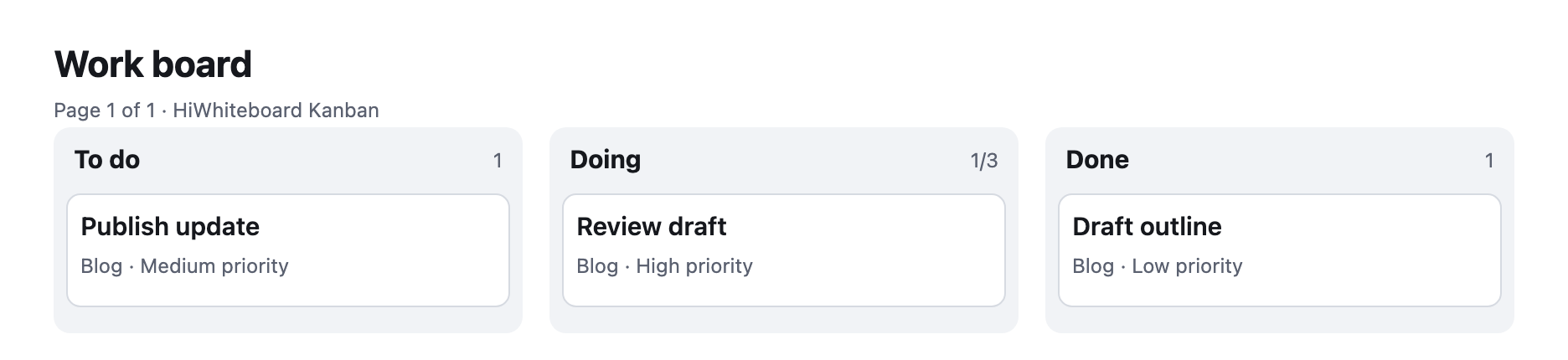
This free Kanban board template gives you three columns — To do, Doing, and Done — with a work-in-progress (WIP) limit of 3 on Doing and three example cards for a small writing task. Open it in your browser, rename the cards, and start moving work. No sign-up.
Best for: Small teams and individuals who track a short project on a physical whiteboard or sticky notes and want the same flow in a browser.
Opens in the Kanban tool as a new board saved in this browser.
What you get
- Three real columns: To do, Doing (WIP limit 3), and Done
- Three example cards in different states: Draft outline (done), Review draft (doing), Publish update (to do)
- Cards you can edit, move, filter, undo, and back up
What it does not do
- No team members, assignments, or comments
- No sync between devices; one person edits in one browser
- No printable card sheets
What is in the template
| Column | WIP limit | Example card |
|---|---|---|
| To do | none | Publish update — label Blog, medium priority |
| Doing | 3 | Review draft — label Blog, high priority |
| Done | none | Draft outline — label Blog, low priority |
Each card is a real Kanban card, not a drawing: it has a title, an optional plain-text description, a label, a priority, and a due date. The example shows one piece of work moving left to right — the outline is done, the review is in progress, and publishing is next.
How to use it
- Select Use this template. A new board is created in this browser; the template itself never changes.
- Rename the board, then edit or delete the example cards. Select a card title to change its fields.
- Add cards to To do with + Add card. Add a due date or label if it helps you sort work.
- Drag a card by its handle to move it, or open the card’s ⋯ menu and choose Move to Doing. Keyboard users can do the same from the menu or with the drag handle (Space, arrow keys, Space).
- Keep Doing at three cards or fewer. If a fourth card arrives, the column shows a warning — the board does not block you, it just makes the overload visible.
Moving from a physical Kanban whiteboard
If your team already uses columns drawn on a whiteboard, copy the column names exactly and write one card per sticky note. Agree on what “Done” means before you start, and keep WIP limits the same as on the wall. Unlike a wall board, nobody else can see this board unless you share your screen or send them a backup file.
Kanban card fields you can use
The template’s cards show the fields every card supports: a required title, an optional plain-text description, one label, a priority (low, medium, or high), and a due date. Text lengths follow the board limits. That is enough for most task boards; there are no assignees, comments, or attachments.
Saving and exporting
Changes save automatically in this browser and the status in the toolbar shows Saved in this browser once they are written. To keep a copy elsewhere, use Export → Backup file; you can import it later as a new board. Export → PNG image creates a readable picture of every column and card, split into pages for large boards.
Questions
Can I change the WIP limit?
Yes. Open the column’s ⋯ menu, choose Rename / WIP limit, and enter a whole number, or leave it empty for no limit.
Can my team edit the same board?
No. HiWhiteboard boards are stored in one browser and have a single editor. You can present the board with screen sharing or send a backup file so someone can import their own copy.
Is this the same as a printable Kanban card template?
No. These are digital cards on a working board. If you need paper cards, use the print view to print the board, but there is no printable card-sheet generator.
Related
- Personal Kanban template — Backlog, This week, Doing (WIP 2), and Done for personal tasks.
- Retrospective template — Start, Stop, and Continue sections with example notes and action items.
- Flowchart template — Start, Draft, Review, an Approved? decision, and Publish, with a rework loop.
- Guide: How to use a Kanban whiteboard